
Best SSH GUI Client for Linux Servers on macOS and Windows
Managing Linux servers through the command line is powerful, but SSH GUI tools provide visual interfaces that dramatically improve productivity. Whether you’re looking for a modern PuTTY alternative or a comprehensive server management solution, this guide covers the best SSH GUI clients for Windows and Linux in 2025.
We’ve tested dozens of SSH tools with GUI to find the ones that combine security, features, and usability. Here are the top 10 SSH GUI applications ranked by overall value.
1. Server Explorer – Best Overall SSH GUI Tool
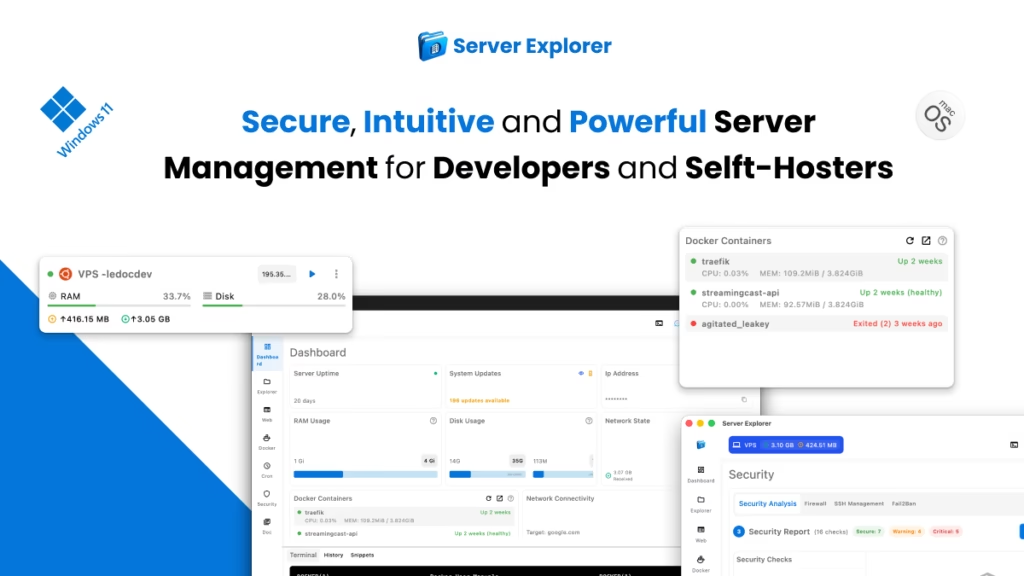
Platform: Windows, macOS
Price: 24.99$
Best for: Developers, DevOps and sysadmins who want complete server management
Why Server Explorer Ranks #1
While most SSH GUI tools focus solely on terminal access, Server Explorer provides a comprehensive server management platform that goes far beyond basic SSH connections.
Key Features:
Visual File Management:
- Browse server files like local folders
- Edit files directly with syntax highlighting
- Visual permission management
- Search across entire filesystem
Integrated SSH Terminal:
- Full terminal access when needed
- Command history and snippets
Advanced Server Management:
- Docker container management
- PM2 process monitoring
- Cron job scheduler (visual)
- Real-time log viewer
- Security scanner (18 automated checks)
Dashboard Monitoring:
- CPU, RAM, disk usage graphs
- Network activity tracking
- Process monitoring
- Alert notifications
Pros & Cons
| PROS | CONS |
| ✅ All-in-one server management (not just SSH) ✅ Modern, intuitive interface ✅ Visual tools eliminate command memorization ✅ Security scanner catches misconfigurations ✅ Integrated terminal for advanced tasks ✅ Multi-server management with quick switching ✅ One time payment | ❌ Paid software ❌ Desktop only (no mobile version) ❌ Focused on Linux/Unix servers |
Best Use Cases
- Managing production VPS servers
- Docker and Node.js deployments
- WordPress site management
- Security auditing and hardening
- Multi-client server management (agencies, freelancers)
Verdict: If you want more than just a terminal and need visual server management, Server Explorer is the clear winner. It’s what PuTTY would be if rebuilt from scratch in 2025.
Related: How to Manage a VPS Without Command Line (internal link)
Download it :
2. Termius – Best Cross-Platform SSH GUI
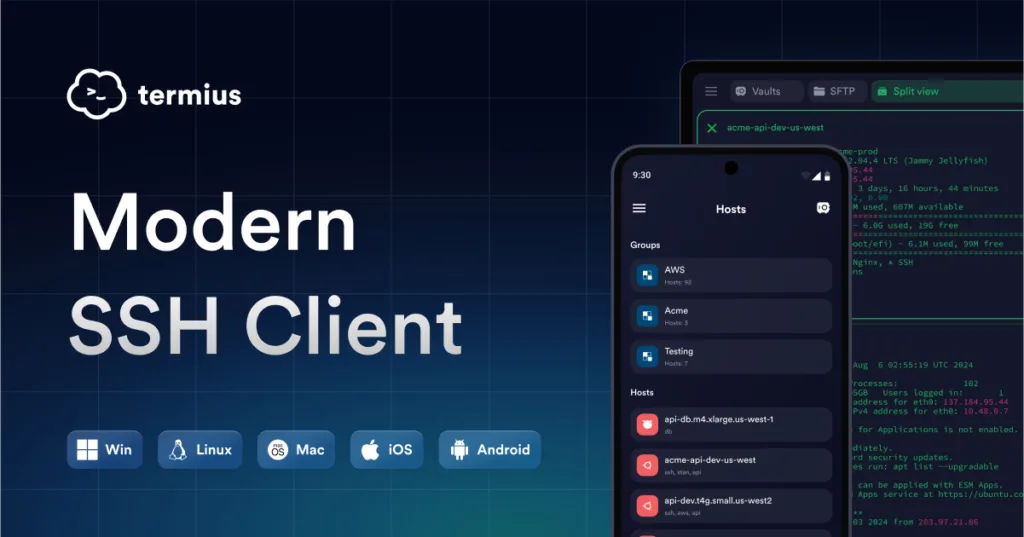
Platform: Windows, macOS, Linux, iOS, Android
Price: Free (basic) / $10/month (Pro)
Best for: Users who need SSH access on all devices
Key Features
- Cross-platform sync: Access servers from any device
- SFTP client: Built-in file transfer
- Port forwarding: Visual SSH tunnel manager
- Snippets: Save frequently-used commands
- Teams: Share connections (Pro)
- Modern UI: Clean, terminal-focused design
Pros & Cons
| PROS | CONS |
| ✅ Works on mobile (iOS/Android) ✅ Cloud sync across devices ✅ Modern interface ✅ Active development | ❌ Pro features behind paywall ❌ Limited server management (terminal-focused) ❌ No advanced features (Docker, PM2, etc.) |
Best for: Developers who need SSH on the go and don’t mind subscription pricing.
Learn more: termius.com
3. MobaXterm – Best for Windows Power Users
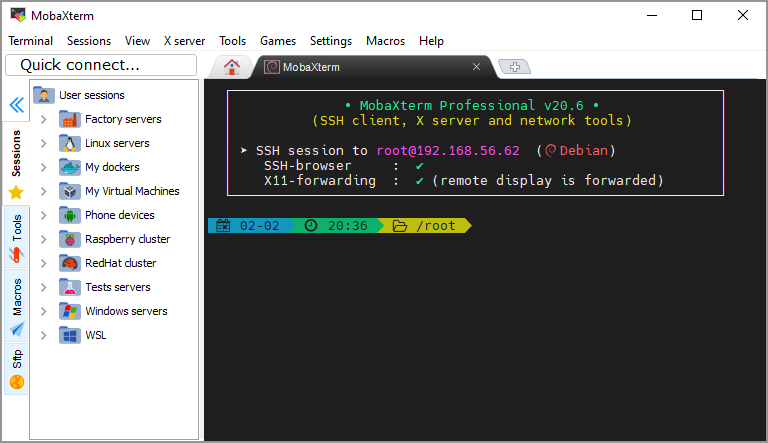
Platform: Windows
Price: Free (Home) / €69 (Professional)
Best for: Power users, X11 forwarding, network tools
Key Features
- Tabbed interface: Multiple sessions in one window
- X11 server: Run Linux GUI apps on Windows
- Built-in tools: Network scanner, SSH key generator, text editor
- SFTP browser: Side-panel file manager
- Macros and plugins: Extensive customization
- Session recording: Save and replay sessions
Pros & Cons
| PROS | CONS |
| ✅ Feature-packed (almost too many features) ✅ Free for home use ✅ X11 forwarding built-in ✅ Portable version available | ❌ Windows only ❌ Overwhelming interface for beginners ❌ UI feels dated ❌ Free version limited to 12 sessions |
Best for: Windows sysadmins who need Swiss Army knife SSH tool with X11 support.
Learn more: mobaxterm.mobatek.net
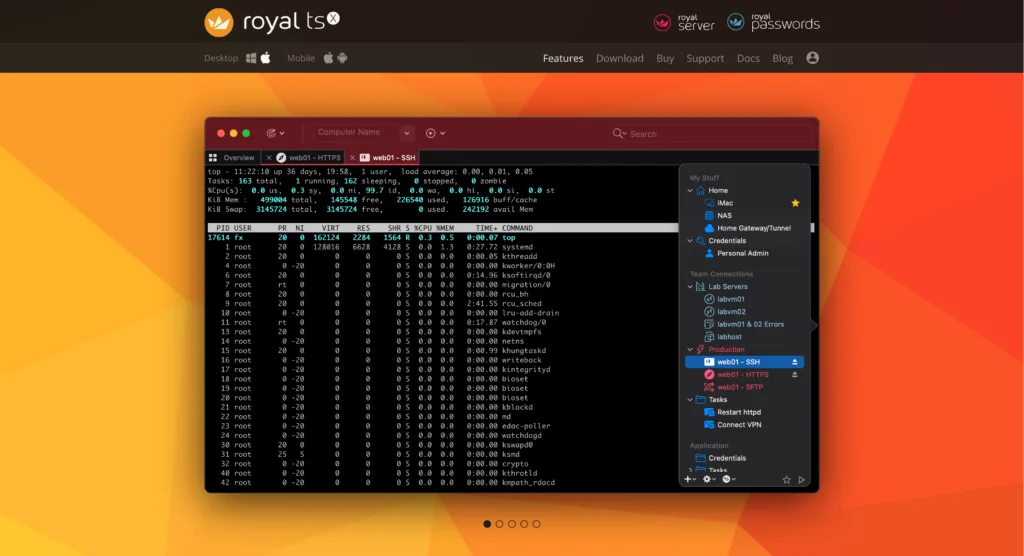
4. Royal TSX – Best for Enterprise Teams
Platform: macOS, Windows, iOS
Price: 40€ (one-time) / Enterprise licensing available
Best for: IT teams managing many servers
Key Features
- Multi-protocol: SSH, RDP, VNC, HTTPS in one app
- Credential vault: Encrypted password storage
- Team sharing: Shared connection documents
- Plugin system: Extend functionality
- Advanced organization: Folders, tags, favorites
- Secure gateway: Jump host support
Pros & Cons
| PROS | CONS |
| ✅ Feature-packed (almost too many features) ✅ Free for home use ✅ X11 forwarding built-in ✅ Portable version available | ❌ Windows only ❌ Overwhelming interface for beginners ❌ UI feels dated ❌ Free version limited to 12 sessions |
Best for: IT departments and MSPs managing hundreds of servers and workstations.
Learn more: royalapps.com
5. PuTTY – The Classic SSH Client
Platform: Windows
Price: Free (open source)
Best for: Simple SSH access, legacy compatibility
Key Features
- Lightweight: Tiny executable (< 1MB)
- No installation: Portable version available
- Stable: Decades of development
- Terminal emulation: VT102, xterm, ECMA-48
- Session saving: Store connection configs
- Open source: Auditable, trusted
Pros & Cons
| PROS | CONS |
| ✅ Free and open source ✅ Extremely lightweight ✅ Rock-solid stability ✅ Industry standard for 20+ years | ❌ No file management (terminal only) ❌ Outdated UI (looks like Windows 95) ❌ No tabs (one window per connection) ❌ Basic feature set ❌ No modern conveniences |
Best for: IT professionals who only need terminal access and prefer proven, lightweight tools.
Why it’s here: PuTTY is legendary, but in 2025, there are better options for visual server management.
Download: putty.org
6. KiTTY – PuTTY with Enhancements
Platform: Windows
Price: Free (open source)
Best for: PuTTY users wanting extra features
Key Features
- PuTTY fork: All PuTTY features plus extras
- Automatic password: Save passwords (encrypted)
- Session launcher: Quick access to saved sessions
- Transparency: Window opacity adjustment
- Portable mode: Run from USB drive
- URL highlighting: Click URLs in terminal
Pros & Cons
| PROS | CONS |
| ✅ All PuTTY benefits plus enhancements ✅ Portable mode ✅ Password storage ✅ Still lightweight | ❌ Still no file management ❌ UI unchanged from PuTTY ❌ Limited to Windows |
Best for: PuTTY loyalists who want minor improvements.
Download: kitty.9bis.com
7. mRemoteNG – Multi-Protocol Connection Manager

Platform: Windows
Price: Free (open source)
Best for: Managing mixed environments (SSH, RDP, VNC)
Key Features
- Multi-protocol: SSH, RDP, VNC, HTTP, Telnet, all in one
- Tabbed interface: Multiple connections in tabs
- Credential inheritance: Set passwords per folder
- Connection sharing: Export/import configs
- External tools: Launch scripts from GUI
- Active development: Regular updates
Pros & Cons
| PROS | CONS |
| ✅ Multi-protocol support ✅ Free and open source ✅ Credential management ✅ Tabbed interface | ❌ Complex UI ❌ Focus spread across many protocols ❌ Less polished than commercial tools ❌ Windows only |
Best for: Windows admins managing both Windows (RDP) and Linux (SSH) servers.
Download: mremoteng.org
8. Remmina – Best for Linux Users
Platform: Linux
Price: Free (open source)
Best for: Native Linux SSH/RDP client
Key Features
- Native Linux: GTK-based, integrates well
- Multi-protocol: SSH, RDP, VNC, SPICE
- Quick connect: Fast connection bar
- Plugins: Extend functionality
- Credential storage: Keyring integration
- Desktop integration: System tray support
Pros & Cons
| PROS | CONS |
| ✅ Free and open source ✅ Native Linux look and feel ✅ Active development ✅ Lightweight | ❌ Linux only ❌ Basic feature set ❌ No advanced server management |
Best for: Linux desktop users who need quick SSH access without Windows/macOS dependencies.
Download: remmina.org
9. PAC Manager – Advanced Linux SSH Manager
Platform: Linux
Price: Free (open source)
Best for: Advanced automation and scripting
Key Features
- Perl-based: Highly scriptable
- Macro system: Automate complex tasks
- Chain commands: Execute sequences
- Tabbed interface: Multiple sessions
- SFTP integration: File manager built-in
- Expect-like: Automate interactive sessions
Pros & Cons
| PROS | CONS |
| ✅ Powerful automation ✅ Scriptable workflows ✅ Free and open source | ❌ Steep learning curve ❌ UI feels dated ❌ Linux only ❌ Less intuitive than modern tools |
Best for: Linux power users who need automation and don’t mind scripting.
Download: pacmanager.org
Bitvise SSH Client – Windows SSH + SFTP
Platform: Windows
Price: Free (personal use)
Best for: SFTP file transfers on Windows
Key Features
- Integrated SFTP: Visual file manager
- Terminal window: SSH terminal access
- Tunneling: Port forwarding GUI
- Key management: Generate and manage SSH keys
- Stable: Professional development
- Scriptable: Command-line automation
Pros & Cons
| PROS | CONS |
| ✅ Free for personal use ✅ SFTP + terminal in one ✅ Professional quality ✅ Active development | ❌ Windows only ❌ UI dated ❌ Commercial use requires license |
Best for: Windows users who need reliable SFTP alongside SSH terminal.
Download: bitvise.com
How to Choose the Right SSH GUI Tool
Decision Framework
Ask yourself these questions:
1. What platform do you use?
- Windows only: MobaXterm, Server Explorer, PuTTY
- macOS only: Server Explorer, Royal TSX, Termius
- Linux only: Remmina, PAC Manager
- All platforms: Termius
2. What’s your primary use case?
- Just need terminal: PuTTY, KiTTY, Termius
- File management too: Server Explorer, Bitvise, MobaXterm
- Full server management: Server Explorer
- Multi-protocol (SSH + RDP): mRemoteNG, Royal TSX
3. What’s your budget?
- Free only: PuTTY, Remmina, mRemoteNG
- Worth paying for quality: Server Explorer, Royal TSX
- Subscription OK: Termius Pro
4. What’s your skill level?
- Beginner: Server Explorer, Termius
- Intermediate: MobaXterm, Royal TSX
- Advanced: PAC Manager, PuTTY
5. Do you need advanced features?
- Docker management: Server Explorer only
- Security scanning: Server Explorer only
- X11 forwarding: MobaXterm
- Mobile access: Termius
Feature Comparison Matrix
| Feature | Server Explorer | Termius | MobaXterm | PuTTY |
|---|---|---|---|---|
| Visual file manager | ✅ Advanced | ✅ Basic | ✅ Side panel | ❌ |
| File editing | ✅ Syntax highlight | ❌ | ✅ Basic | ❌ |
| Docker management | ✅ | ❌ | ❌ | ❌ |
| Process monitoring | ✅ PM2 + system | ❌ | ❌ | ❌ |
| Security scanning | ✅ 18 checks | ❌ | ❌ | ❌ |
| Cron scheduler | ✅ Visual | ❌ | ❌ | ❌ |
| Multi-server tabs | ✅ | ✅ | ✅ | ❌ |
| Mobile support | ❌ | ✅ | ❌ | ❌ |
| Cross-platform | Windows, macOS | All | Windows | Windows |
| Open source | ❌ | ❌ | ❌ | ✅ |
The Verdict: Best SSH GUI for Most Users
🥇 For Complete Server Management: Server Explorer
If you manage Linux VPS servers and want visual tools for files, Docker, security, and monitoring—not just a terminal—Server Explorer is the clear winner.
Why choose Server Explorer:
- Goes beyond SSH to full server management
- Modern interface designed for 2025 workflows
- Security features prevent misconfigurations
- Time-saving visual tools for daily tasks
- Integrated terminal for advanced operations
Download: serverexplorer.ledocdev.com
🥈 For Cross-Platform + Mobile: Termius
If you need SSH on all devices with cloud sync, Termius is the best choice.
🥉 For Windows Power Users: MobaXterm
If you’re on Windows and need X11 forwarding plus extensive network tools, MobaXterm delivers.
Conclusion: SSH GUI Tools Have Evolved
The SSH GUI landscape has changed dramatically:
2005: PuTTY was revolutionary—finally, Windows users could SSH without Unix tools.
2025: Modern SSH GUI tools provide comprehensive server management, not just terminal access.
The future of SSH GUI tools includes:
- AI-assisted command suggestions
- Visual infrastructure management
- Integrated DevOps workflows
- Collaborative server access
- Mobile-first interfaces
Don’t settle for terminal-only SSH when visual tools can save you hours per week.
Whether you choose Server Explorer for comprehensive management, Termius for mobile access, or stick with PuTTY for simplicity, having the right SSH GUI tool makes server management dramatically more efficient.