
If you want to manage cron tasks on server without dealing with crontab syntax errors, this guide shows exactly how to do it. Cron is powerful but often underused because editing schedules manually is tedious. Here you’ll learn the essential cron jobs every server needs and how to automate them easily with a visual interface.
What if you could schedule automated tasks with a visual interface that eliminates syntax errors and makes scheduling as simple as selecting from dropdowns? This guide shows you 10 essential cron tasks every server needs, and how Server Explorer makes implementing them effortless.
Why You Should Manage Cron Tasks on Server (And Why Many Don’t)
Cron is the Unix time-based job scheduler that runs commands or scripts at specified intervals. It’s the backbone of server automation:
- Backups run automatically at 2 AM
- Log rotation prevents disk space issues
- Database cleanup keeps performance optimal
- Certificate renewal happens before expiration
- Monitoring scripts detect problems proactively
Yet despite their importance, cron jobs are often neglected because:
The traditional workflow is painful:
Copied!# SSH into server ssh user@server # Edit crontab crontab -e # Remember the syntax (wait, is it minute hour day month weekday?) # * * * * * command # ^ ^ ^ ^ ^ # | | | | | # | | | | +--- Day of week (0-7, Sunday=0 or 7) # | | | +----- Month (1-12) # | | +------- Day of month (1-31) # | +--------- Hour (0-23) # +----------- Minute (0-59) # Make a typo, save, pray it works # Check logs later to see if it actually ran
This is one of the biggest reasons developers struggle to manage cron tasks on server reliably.
Common problems:
- Syntax errors that silently fail
- Timezone confusion
- Path issues (scripts work manually but fail in cron)
- No easy way to test schedules
- Difficult to visualize when tasks actually run
Server Explorer solves all of this.
How to Manage Cron Tasks on Server with a Visual Interface
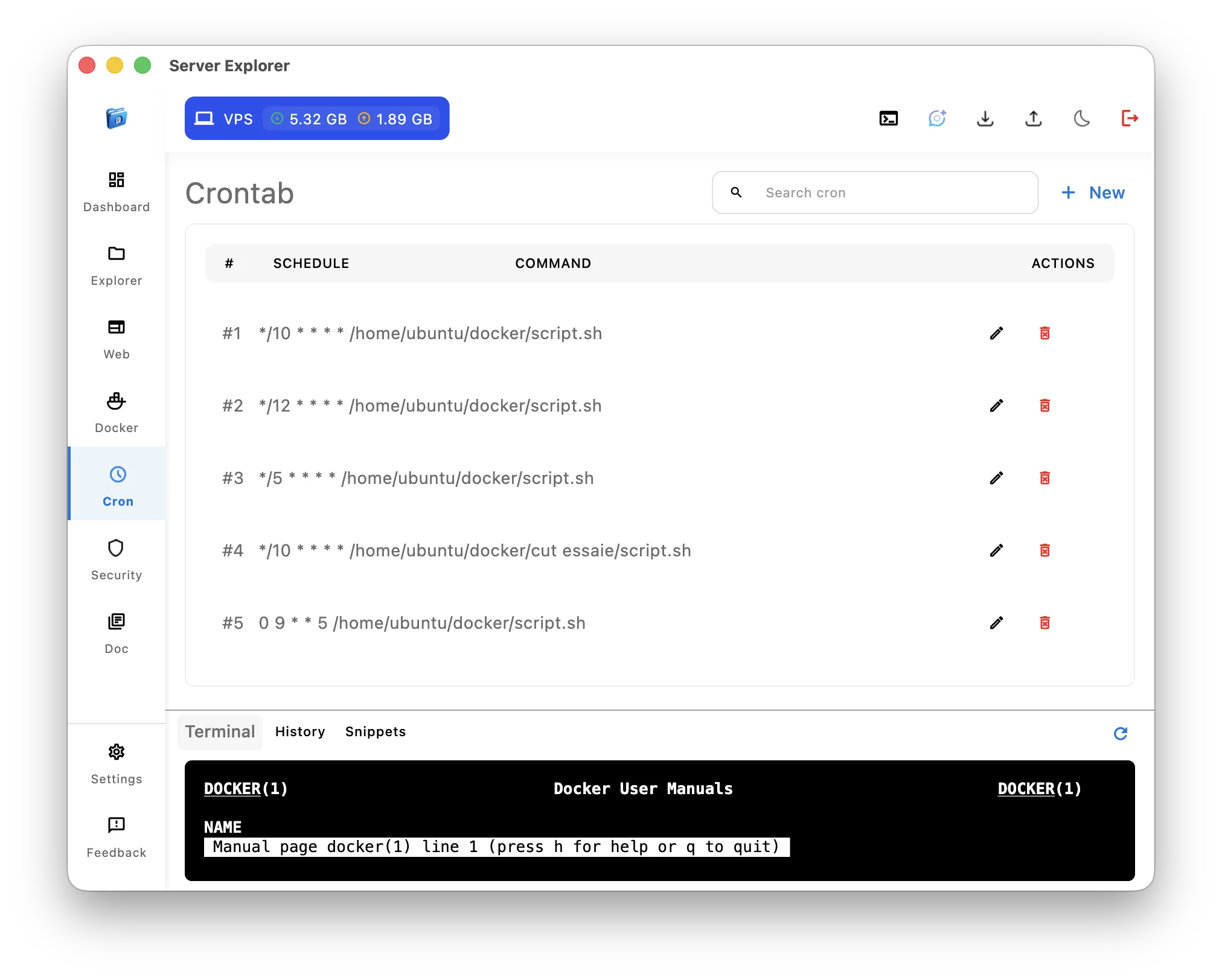
When you open the Cron section in Server Explorer, you immediately see all your scheduled tasks in a clean, organized table:
- Schedule in human-readable format (no more decoding asterisks)
- Command paths clearly displayed
- Easy editing and deletion with visual controls
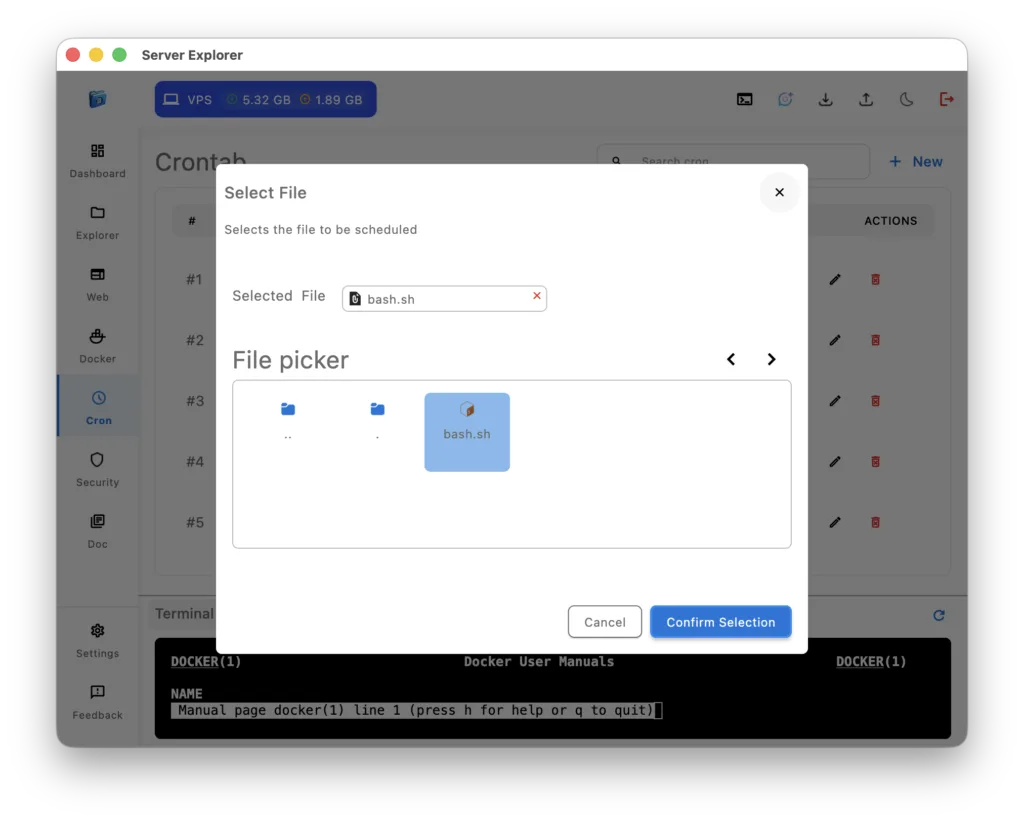
Creating new cron jobs is equally straightforward:
- Click the “+ New” button
- Select your script using the visual file picker
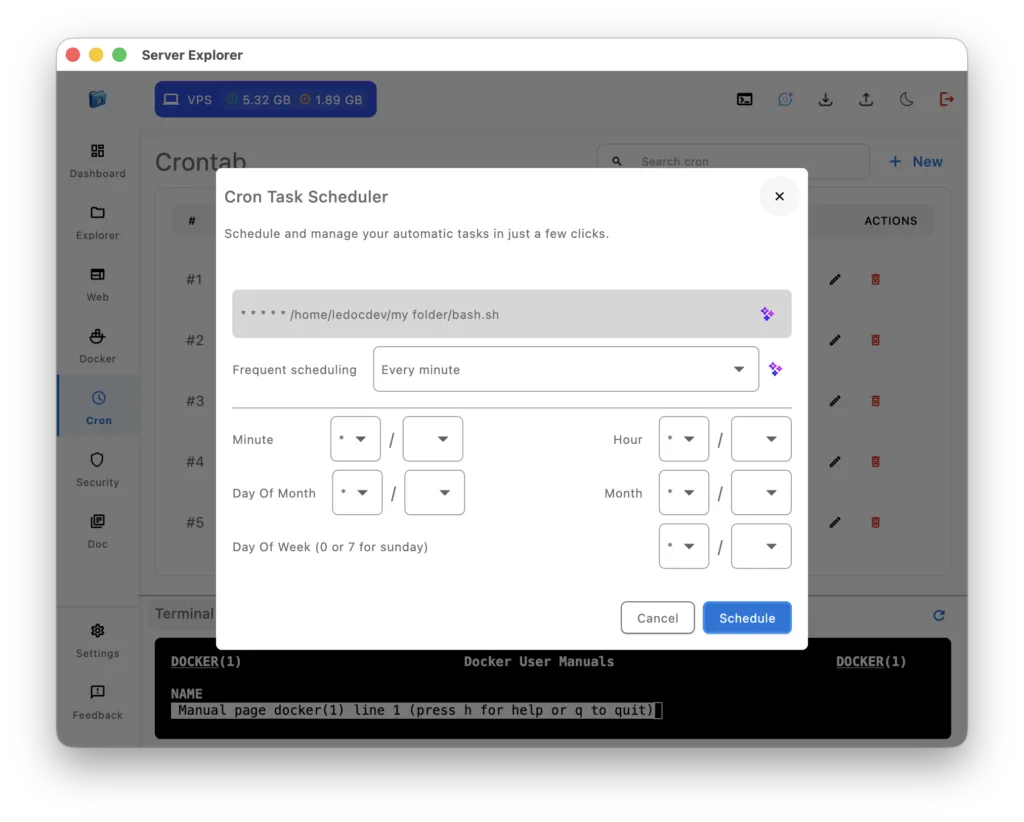
- Choose scheduling frequency from presets or customize
- Save and confirm
No manual crontab editing. No syntax errors. No guesswork.
10 Essential Tasks When You Manage Cron Tasks on Server
Let’s dive into the automated tasks every well-maintained server should have, and how to implement them using Server Explorer.
1. Automated Database Backups (A Core Part of Managing Cron Tasks on Server)
Why it’s essential: Data loss is catastrophic. Regular backups are your safety net.
Traditional cron syntax:
Copied!0 2 * * * /home/user/scripts/backup-database.sh
With Server Explorer:
- Create your backup script (
backup-database.sh) - Click “+ New” in the Cron section
- Select the script via file picker
- Choose “Every day” preset
- Set hour to 2 AM
- Click “Schedule”
Script example:
Copied!#!/bin/bash DATE=$(date +%Y%m%d_%H%M%S) mysqldump -u username -p'password' database_name > /backups/db_$DATE.sql # Upload to S3 or remote storage
Pro tip: Schedule backups during low-traffic hours (2-4 AM) to minimize performance impact.
2. Log Rotation and Cleanup
Why it’s essential: Logs grow infinitely. Without rotation, they’ll eventually fill your disk and crash your server.
What to automate:
Copied!# Delete logs older than 30 days find /var/log/app/*.log -mtime +30 -delete # Compress old logs gzip /var/log/app/*.log.1
Recommended schedule: Daily at 3 AM
Server Explorer setup:
- Frequency: Every day
- Hour: 3 AM
- Script:
/home/user/scripts/cleanup-logs.sh
Why this matters: A full disk is a common cause of mysterious server failures. This simple task prevents 90% of disk space emergencies.
3. SSL Certificate Renewal (Let’s Encrypt)
Why it’s essential: Expired certificates break your website and destroy trust. Automation prevents embarrassing outages.
Traditional approach:
Copied!0 0 1 * * certbot renew --quiet
With Server Explorer:
- Frequency: Every month
- Day: 1st
- Hour: 12 AM
- Command:
certbot renew --quiet && systemctl reload nginx
Pro tip: Let’s Encrypt certificates expire after 90 days. Monthly renewal checks ensure you never forget.
4. System Updates and Security Patches
Why it’s essential: Unpatched servers are security vulnerabilities. Automated updates keep your system secure.
What to automate:
Copied!#!/bin/bash apt-get update apt-get upgrade -y apt-get autoremove -y
Recommended schedule: Weekly on Sunday at 4 AM
Server Explorer setup:
- Frequency: Every week
- Day of week: Sunday (0)
- Hour: 4 AM
- Script:
/home/user/scripts/system-update.sh
Caution: For critical production servers, test updates on staging first. Consider using apt-get upgrade -y --allow-downgrades with specific package exclusions.
5. Database Optimization and Cleanup
Why it’s essential: Databases accumulate bloat over time. Regular optimization maintains performance.
What to automate:
Copied!# MySQL optimization mysqlcheck -o --all-databases -u root -p'password' # Clean old sessions mysql -u root -p'password' -e "DELETE FROM sessions WHERE created_at < NOW() - INTERVAL 30 DAY;"
Recommended schedule: Weekly on Saturday at 2 AM
Server Explorer setup:
- Frequency: Every week
- Day: Saturday
- Hour: 2 AM
Expected benefit: Queries run faster, backups are smaller, and you avoid slow-down accumulation.
6. Temp File Cleanup
Why it’s essential: Temporary files from uploads, sessions, and cache pile up. Regular cleanup prevents disk bloat.
What to automate:
Copied!# Clean tmp directories find /tmp -type f -mtime +7 -delete find /var/tmp -type f -mtime +7 -delete # Clean application temp files find /var/www/app/temp -type f -mtime +1 -delete
Recommended schedule: Daily at 4 AM
Server Explorer setup:
- Frequency: Every day
- Hour: 4 AM
- Script:
/home/user/scripts/cleanup-temp.sh
7. Docker Cleanup (Images and Containers)
Why it’s essential: Docker images and stopped containers consume gigabytes. Regular pruning reclaims space.
What to automate:
Copied!# Remove dangling images docker image prune -f # Remove stopped containers older than 24h docker container prune -f --filter "until=24h" # Remove unused volumes docker volume prune -f
Recommended schedule: Weekly on Sunday at 3 AM
Server Explorer setup:
- Frequency: Every week
- Day: Sunday
- Hour: 3 AM
Impact: Can free up 10-50GB depending on your Docker usage.
8. Health Check and Monitoring
Why it’s essential: Proactive monitoring catches problems before users notice. Automated checks reduce downtime.
What to automate:
Copied!#!/bin/bash # Check if critical services are running if ! systemctl is-active --quiet nginx; then systemctl start nginx echo "Nginx was down, restarted at $(date)" >> /var/log/health-check.log fi # Check disk space DISK_USAGE=$(df -h / | awk 'NR==2 {print $5}' | sed 's/%//') if [ $DISK_USAGE -gt 85 ]; then echo "WARNING: Disk usage at ${DISK_USAGE}%" | mail -s "Disk Alert" admin@example.com fi
Recommended schedule: Every 5 minutes
Server Explorer setup:
- Frequency: Custom cron expression
- Expression:
*/5 * * * *(every 5 minutes)
9. Sitemap Generation and Search Engine Updates
Why it’s essential: Fresh sitemaps help search engines index your content quickly. Automation ensures your SEO stays current.
What to automate:
Copied!# Generate sitemap /usr/bin/node /var/www/app/scripts/generate-sitemap.js # Ping search engines curl "http://www.google.com/ping?sitemap=https://yoursite.com/sitemap.xml" curl "http://www.bing.com/ping?sitemap=https://yoursite.com/sitemap.xml"
Recommended schedule: Daily at 1 AM
Server Explorer setup:
- Frequency: Every day
- Hour: 1 AM
SEO impact: New content gets indexed faster, improving search visibility.
10. Backup Verification and Testing
Why it’s essential: Backups you can’t restore are worthless. Regular verification ensures your backups actually work.
What to automate:
Copied!#!/bin/bash # Test database backup restore LATEST_BACKUP=$(ls -t /backups/db_*.sql | head -1) mysql -u root -p'password' test_restore_db < $LATEST_BACKUP # Verify restore succeeded if [ $? -eq 0 ]; then echo "Backup verified: $LATEST_BACKUP" >> /var/log/backup-verification.log else echo "ERROR: Backup restore failed!" | mail -s "Backup Alert" admin@example.com fi # Clean test database mysql -u root -p'password' -e "DROP DATABASE test_restore_db;"
Recommended schedule: Weekly on Monday at 5 AM
Server Explorer setup:
- Frequency: Every week
- Day: Monday
- Hour: 5 AM
Critical insight: Many organizations discover their backups are corrupted only during emergencies. Weekly verification prevents this nightmare scenario.
Advanced Scheduling with Server Explorer
Using Presets for Common Patterns
Server Explorer provides intelligent presets that cover 90% of use cases:
- Every minute – High-frequency monitoring
- Every 5 minutes – Health checks
- Every hour – Regular maintenance
- Every day – Backups, cleanups
- Every week – Optimization tasks
- Every month – Certificate renewals
Simply select the preset and adjust the specific time if needed.
Custom Cron Expressions
For complex schedules, Server Explorer supports full cron syntax with a visual builder:
- Minute (0-59)
- Hour (0-23)
- Day of Month (1-31)
- Month (1-12)
- Day of Week (0-7, where 0 and 7 are Sunday)
The interface prevents syntax errors by validating your input in real-time.
Example complex schedules:
-
Business hours only:
0 9-17 * * 1-5(9 AM to 5 PM, Monday-Friday) -
Twice daily:
0 6,18 * * *(6 AM and 6 PM every day) -
First Monday of month:
0 0 1-7 * 1(Midnight, first week, Monday only)
Best Practices for Cron Job Management
1. Use Absolute Paths
Cron jobs don’t inherit your shell environment. Always use full paths:
Bad:
Copied!node generate-report.js
Good:
Copied!/usr/bin/node /home/user/app/generate-report.js
2. Log Everything
Redirect output to log files for debugging:
Copied!/home/user/scripts/backup.sh >> /var/log/backup.log 2>&1
3. Test Scripts Manually First
Before scheduling, run your script manually:
Copied!bash /home/user/scripts/backup.sh
If it fails manually, it’ll fail in cron—but with less obvious error messages.
4. Set Appropriate Permissions
Make sure your scripts are executable:
Copied!chmod +x /home/user/scripts/backup.sh
5. Avoid Overlapping Executions
For long-running tasks, add lock files:
Copied!#!/bin/bash LOCKFILE=/tmp/backup.lock if [ -f $LOCKFILE ]; then echo "Backup already running" exit 1 fi touch $LOCKFILE # Your backup commands here rm $LOCKFILE
Monitoring Your Cron Jobs
Visual Execution Tracking
Server Explorer’s Cron interface shows:
- Last execution time for each task
- Success/failure status with visual indicators
- Quick edit access to modify schedules
- Easy deletion of outdated tasks
Troubleshooting Common Cron Issues
Task Not Running?
Check these common causes:
- Path issues: Use absolute paths for all commands and scripts
-
Permissions: Verify script is executable (
chmod +x) - Environment variables: Cron has minimal environment—set needed variables in your script
- Syntax errors: Let Server Explorer validate your schedule
- User context: Ensure the cron job runs as the correct user
How to Debug
View cron execution attempts:
Copied!grep CRON /var/log/syslog | tail -20
Test your schedule: Visit crontab.guru to verify complex expressions, or use Server Explorer’s visual builder.
Run script manually: Execute your script the same way cron would:
Copied!cd /home/user && ./scripts/backup.sh
Security Considerations
Protecting Sensitive Commands
Never put passwords directly in crontab:
Bad:
Copied!0 2 * * * mysqldump -u root -p'mypassword' db > backup.sql
Good:
Copied!0 2 * * * /home/user/scripts/secure-backup.sh
Store credentials in the script with restricted permissions:
Copied!chmod 600 /home/user/scripts/secure-backup.sh
Limiting Cron Access
Only trusted users should edit crontab. Server Explorer respects your system’s SSH authentication—if you can SSH in, you can manage cron.
Consider using /etc/cron.allow and /etc/cron.deny for additional access control on the system level.
Real-World Cron Strategy
A Complete Automation Schedule
Here’s a practical weekly schedule for a production server:
Daily:
- 1:00 AM – Generate sitemap
- 2:00 AM – Database backup
- 3:00 AM – Log cleanup
- 4:00 AM – Temp file cleanup
- Every 5 min – Health checks
Weekly:
- Saturday 2:00 AM – Database optimization
- Sunday 3:00 AM – Docker cleanup
- Sunday 4:00 AM – System updates
- Monday 5:00 AM – Backup verification
Monthly:
- 1st, 12:00 AM – SSL certificate renewal
This schedule ensures comprehensive automation without resource conflicts.
From Manual to Automated: Making the Transition
Start Small
Don’t try to automate everything at once. Begin with:
- Database backups (most critical)
- Log cleanup (prevents immediate problems)
- Health checks (catches issues early)
Then expand to optimization and monitoring tasks.
Document Your Automations
Server Explorer makes it easy to see all scheduled tasks at a glance, but maintain documentation:
- What each task does
- Why it runs at its scheduled time
- What to do if it fails
- Who to contact for issues
Review Regularly
Schedule a monthly review of your cron jobs:
- Are they still necessary?
- Are the schedules optimal?
- Are logs showing any failures?
Get Started with Visual Cron Management
Ready to stop editing crontab files and start automating visually?

Server Explorer
Manage your servers with just a few clicks. Replace complex command-line operations with an intuitive interface, while maintaining the performance and security of traditional SSH access.
Server Explorer’s Cron features:
✅ Visual scheduling interface
✅ No syntax errors with validated input
✅ File picker for easy script selection
✅ Preset schedules for common patterns
✅ Full custom cron expression support
✅ Easy editing and deletion
✅ Integrated with file explorer and terminal
Conclusion: Automation Is Professional Operations
The difference between a well-maintained server and a ticking time bomb often comes down to automation. Cron jobs handle the repetitive, critical tasks that keep systems running smoothly—but only if they’re actually implemented.
Traditional crontab editing creates friction that leads to procrastination. Server Explorer removes that friction by making cron management visual, intuitive, and error-free.
The result?
- Backups that actually run
- Logs that don’t fill disks
- Certificates that renew automatically
- Systems that stay secure and optimized
- Peace of mind for on-call rotations
Your server deserves professional-grade automation. Your workflow deserves modern tooling.
What’s your most critical cron job? Share your automation wins (or horror stories) in the comments.
Server Explorer is available now for macOS and Windows with full cron management. Start automating your server visually at serverexplorer.ledocdev.com