
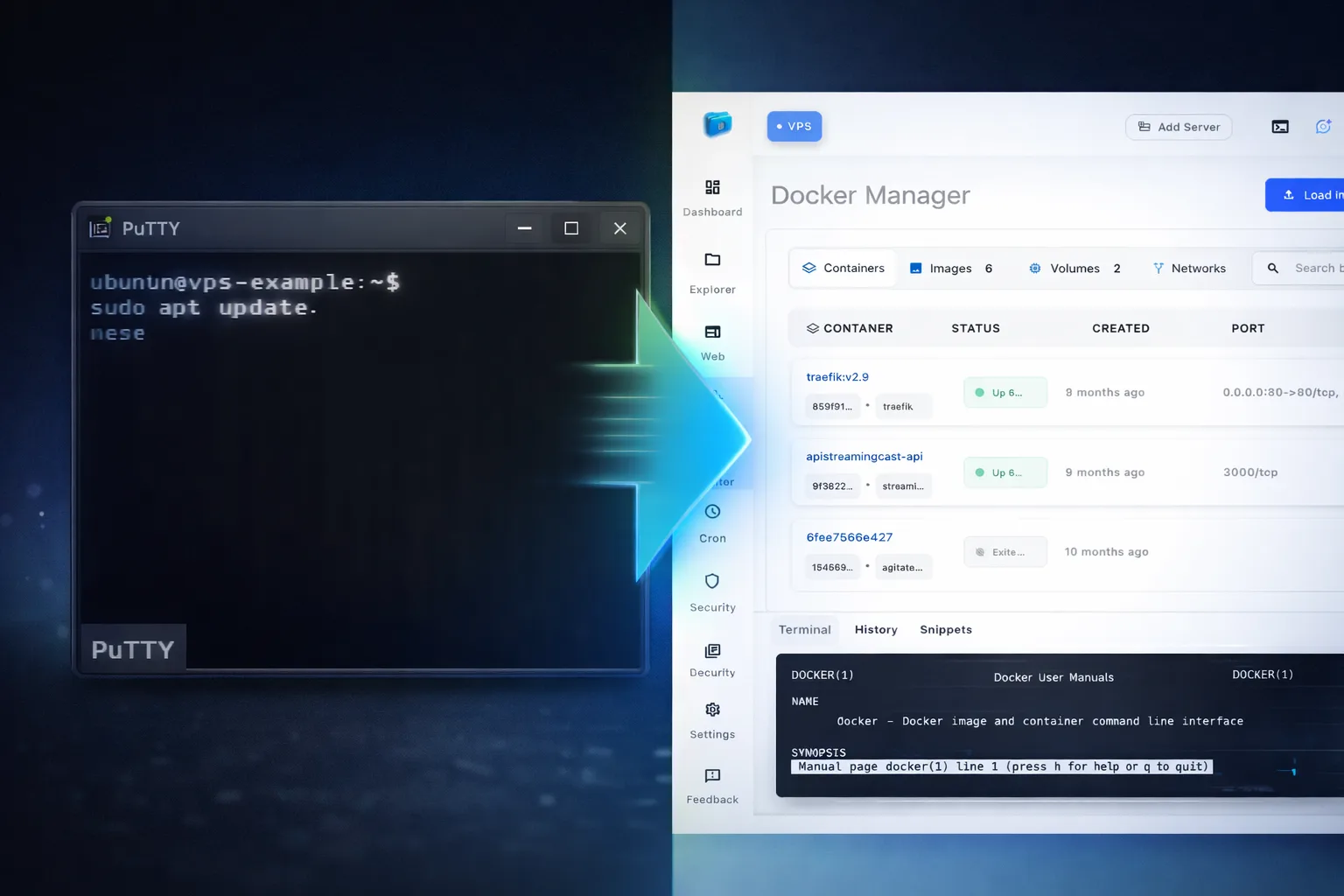
Connecting to a Linux server from Windows usually means using tools like PuTTY.
Connecting to a Linux server from Windows often means using tools like PuTTY.
However, many developers are now looking for better ways to connect to a Linux server from Windows without PuTTY, especially as workflows become more complex and require more than just a basic terminal.
In this guide, you’ll learn how to connect to a Linux server from Windows without PuTTY using modern tools that simplify server management.
How to Connect to a Linux Server from Windows (Traditional Way with PuTTY)
If your goal is to connect to a Linux server from Windows without PuTTY, using a modern SSH GUI client can significantly improve your workflow and reduce manual configuration.
PuTTY isn’t broken.
It does exactly what it was designed to do: open a secure SSH terminal.
The problem is that modern server management is no longer just about opening a terminal.
My typical day now looks like this:
- Reading logs in production
- Deploying to staging
- Restarting a systemd service
- Checking Docker containers
- Inspecting environment variables
- Monitoring CPU and memory usage
- Switching between multiple servers
With PuTTY, that meant:
- Multiple windows
- Manual context switching
- No visibility into overall system state
- No file management without another tool
- Constant window juggling
That friction adds up.
Limitations of Using PuTTY for Modern Server Management
PuTTY still works. But here’s where it started limiting my workflow.
1. One Window = One Context
PuTTY is linear.
One window.
One server.
One terminal.
But infrastructure today is not linear.
I manage:
- Production
- Staging
- Test environments
- Side projects
With PuTTY, that means separate windows for each server.
There is no:
- Unified view
- Fast server switching
- Organized multi-server workflow
It becomes visual clutter.
2. No Multi-Terminal Workflow Per Server
Modern work is parallel.
Example:
- Terminal 1:
tail -f /var/log/nginx/error.log - Terminal 2:
git pull && npm install - Terminal 3:
systemctl restart app - Terminal 4: checking environment variables
With PuTTY, that means spawning multiple windows or relying on tmux.
Tmux is powerful, but it adds complexity. It shouldn’t be mandatory just to work efficiently.
3. File Management Requires Another Tool
PuTTY has no integrated file browser.
So you install:
- WinSCP
- Or use PSCP
- Or open another SFTP client
Now you’re juggling two applications just to:
- Edit a configuration file
- Upload a
.envfile - Check file permissions
That separation slows everything down.
4. No Docker Visibility
In 2026, most applications run in containers.
With PuTTY, Docker management looks like this:
Copied!docker ps docker logs container docker network ls docker inspect container
It works.
But there’s no visual topology.
No container overview panel.
No structured view of networks and relationships.
Everything is raw output.
5. Service and Process Management Is Manual
Restarting services requires remembering commands:
Copied!systemctl restart nginx systemctl status nginx
Checking processes:
Copied!ps aux htop
There is no:
- Search
- Filter
- One-click process kill
- Service quick actions
Everything depends on memory and manual commands.
Modern Alternative to PuTTY on Windows
I didn’t stop because PuTTY failed.
I stopped because my workflow outgrew it.
Server management in 2026 is:
- Multi-server
- Containerized
- Parallel
- Monitoring-heavy
An SSH client is no longer just a connection tool.
It’s your operating environment.
What I Use Instead
I switched to a modern visual SSH client: Server Explorer.
Not to replace SSH.
But to reduce friction around it.
What Changed After Switching
Multi-Server Tabs
Instead of disconnected windows, I now:
- Open multiple servers in organized tabs
- Switch instantly between environments
- Keep production and staging clearly separated
It reduces mental load immediately.
Multiple Terminals Per Server
Inside a single server tab, I can:
- Keep logs running
- Deploy code
- Restart services
- Monitor output
All without losing context.
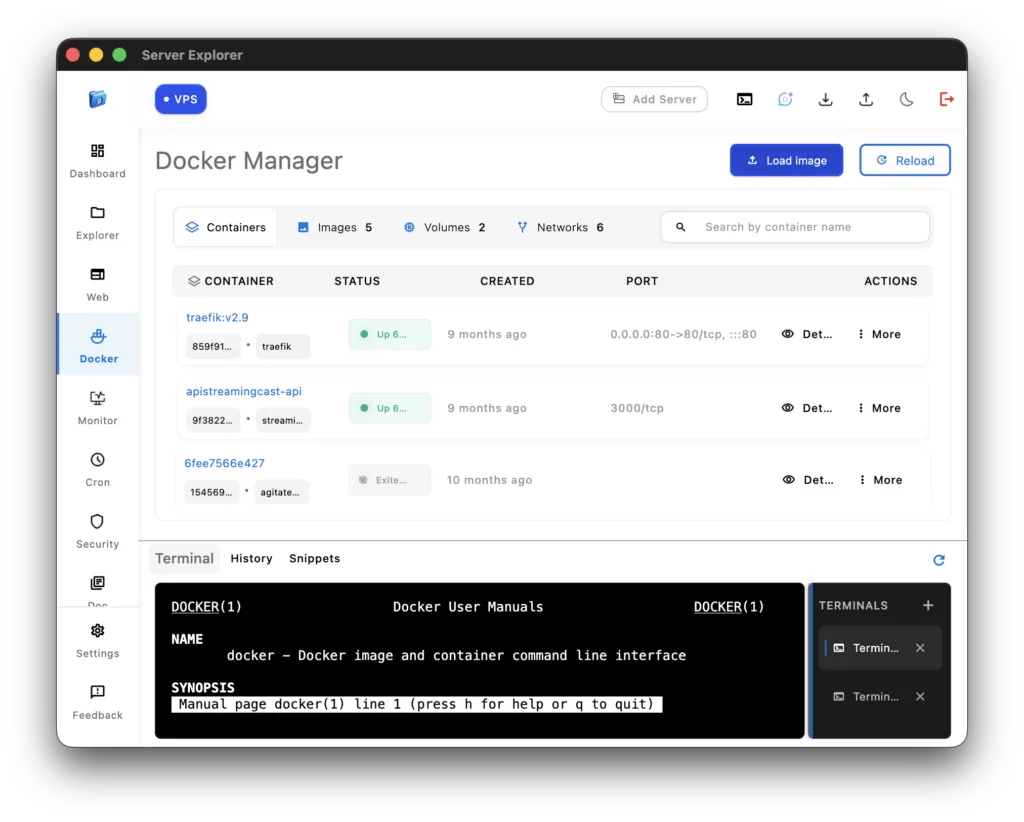
Manage Files on a Linux Server from Windows Without PuTTY
Instead of launching WinSCP:
- Browse
/var/wwwdirectly - Sort files by size
- Edit configuration files with syntax highlighting
- Preview JSON or SQLite data
It removes an entire tool from my stack.
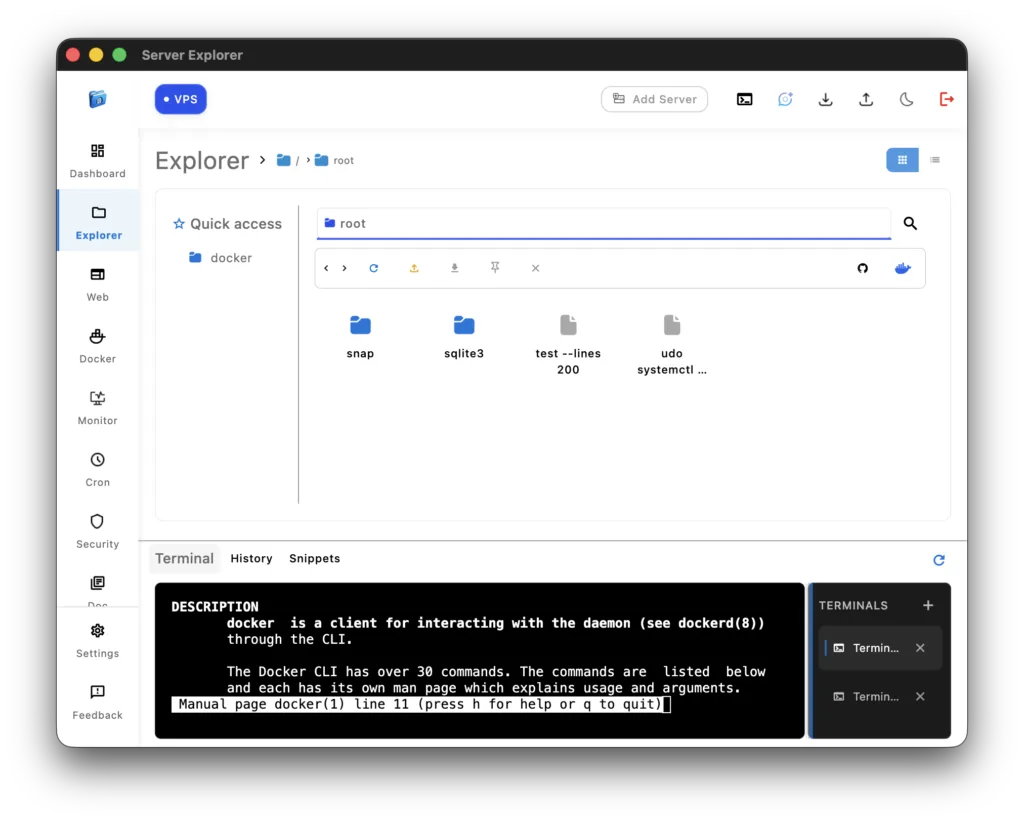
Manage Services and Processes on a Linux Server Without PuTTY
Instead of memorizing commands:
- Start, stop, and restart systemd services with quick actions
- Search running processes
- Kill a stuck process in one click
It speeds up routine operations and reduces errors.
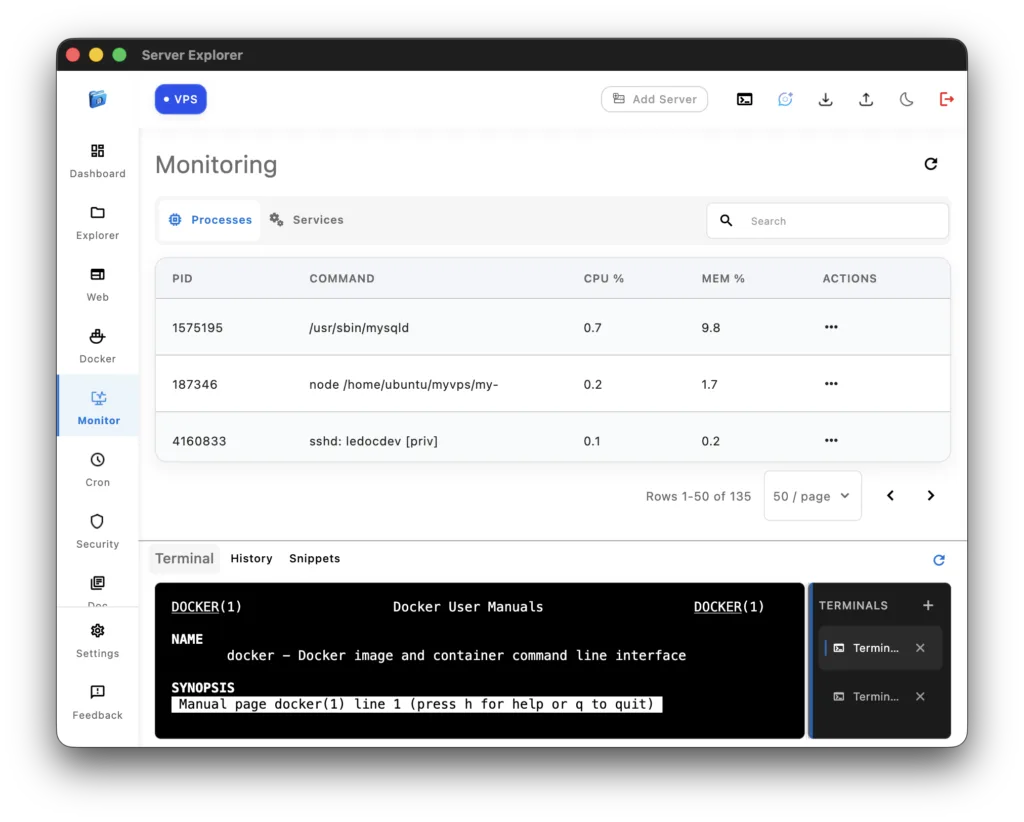
Manage Docker on a Linux Server from Windows Without PuTTY
Instead of relying only on CLI:
- See running containers
- Inspect logs
- Visualize Docker networks
- Understand container relationships
It’s still SSH underneath.
But with clarity.
PuTTY vs Modern SSH Client on Windows (Comparison)
| Feature | PuTTY | Modern Visual SSH Client |
|---|---|---|
| Basic SSH connection | ✅ | ✅ |
| Multi-server tabs | ❌ | ✅ |
| Multiple terminals per server | ❌ | ✅ |
| Integrated file browser | ❌ | ✅ |
| Docker visibility | ❌ | ✅ |
| Service quick actions | ❌ | ✅ |
| Process search & kill | ❌ | ✅ |
| Server dashboard (CPU/RAM/Disk) | ❌ | ✅ |
Final Thoughts
I didn’t stop using PuTTY because it stopped working.
I stopped because my infrastructure evolved.
If you manage Linux servers in 2026, your SSH client should help you maintain clarity, not add friction.
For me, that’s why I stopped using PuTTY.
And why I use Server Explorer instead.
Experience SSH Without PuTTy
Ready to manage Linux servers visually while maintaining SSH security?

Try Server Explorer Today
Manage your servers with just a few clicks. Replace complex command-line operations with an intuitive interface, while maintaining the performance and security of traditional SSH access.
Useful Resources
If you want to explore SSH tools and alternatives further, here are some helpful resources:
– OpenSSH official documentation
– Microsoft guide to OpenSSH on Windows
– PuTTY official website
– Comparison of SSH clients
– Docker official documentation
Leave a Reply