Manage Docker Without Command Line – Complete Visual Guide
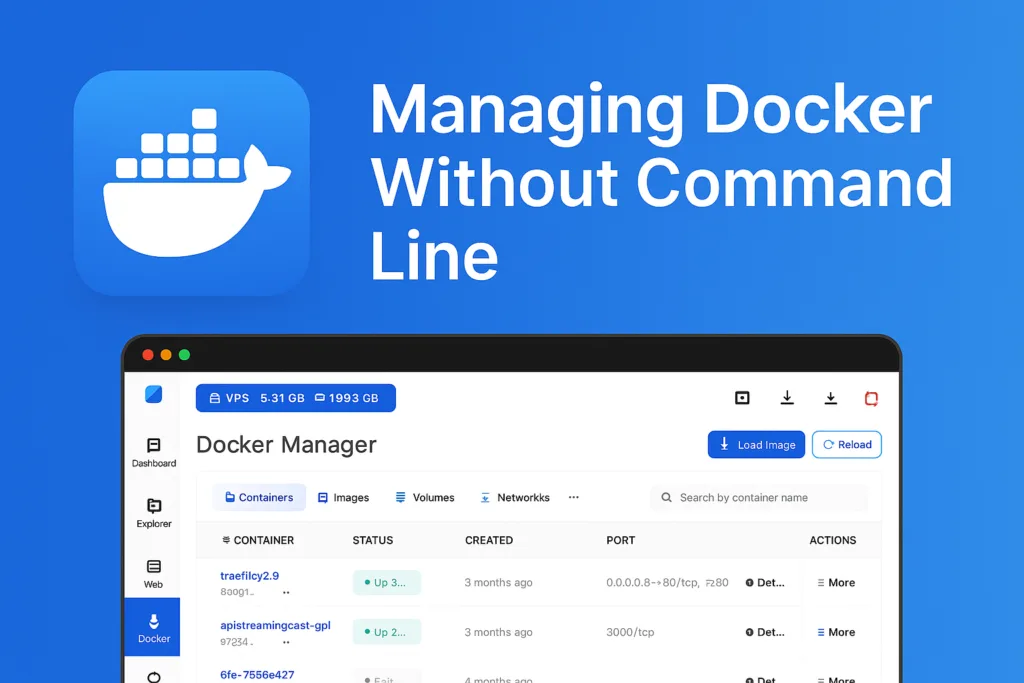
If you want to manage Docker without command line, this guide shows exactly how to do it using a modern visual interface. You’ll learn how to manage Docker containers, images, volumes, and networks without typing a single terminal command, all through Server Explorer.
This comprehensive guide shows you how to manage Docker containers, images, volumes, and networks using Server Explorer—without typing a single command.
This approach allows you to manage Docker without command line while keeping full control over your containers.
Why Choose a Visual Interface to Manage Docker Without Command Line?
Before diving into the how-to, let’s address the elephant in the room: why would experienced developers opt for a GUI when the CLI is so powerful?
The reality is simple: You don’t lose any power with a visual interface—you gain efficiency. Instead of remembering whether it’s docker ps -a or docker container ls --all, you simply click on the Containers tab. Instead of parsing through JSON output or scrolling through endless logs in your terminal, you get organized, filterable views.
Server Explorer doesn’t replace your Docker knowledge; it accelerates your workflow so you can focus on solving problems rather than remembering syntax.
Getting Started: How to Manage Docker Without Command Line Through SSH
Server Explorer uses SSH to securely connect to your server, meaning Docker commands are executed remotely with full encryption—exactly as they would be via terminal, but with zero cloud dependencies.
To begin:
- Launch Server Explorer and add your server connection
- Authenticate using SSH keys or password
- Navigate to the Docker section from the sidebar
Once connected, you’ll immediately see an overview of your Docker environment without running a single command.
Container Management Made Visual
Viewing Your Containers at a Glance
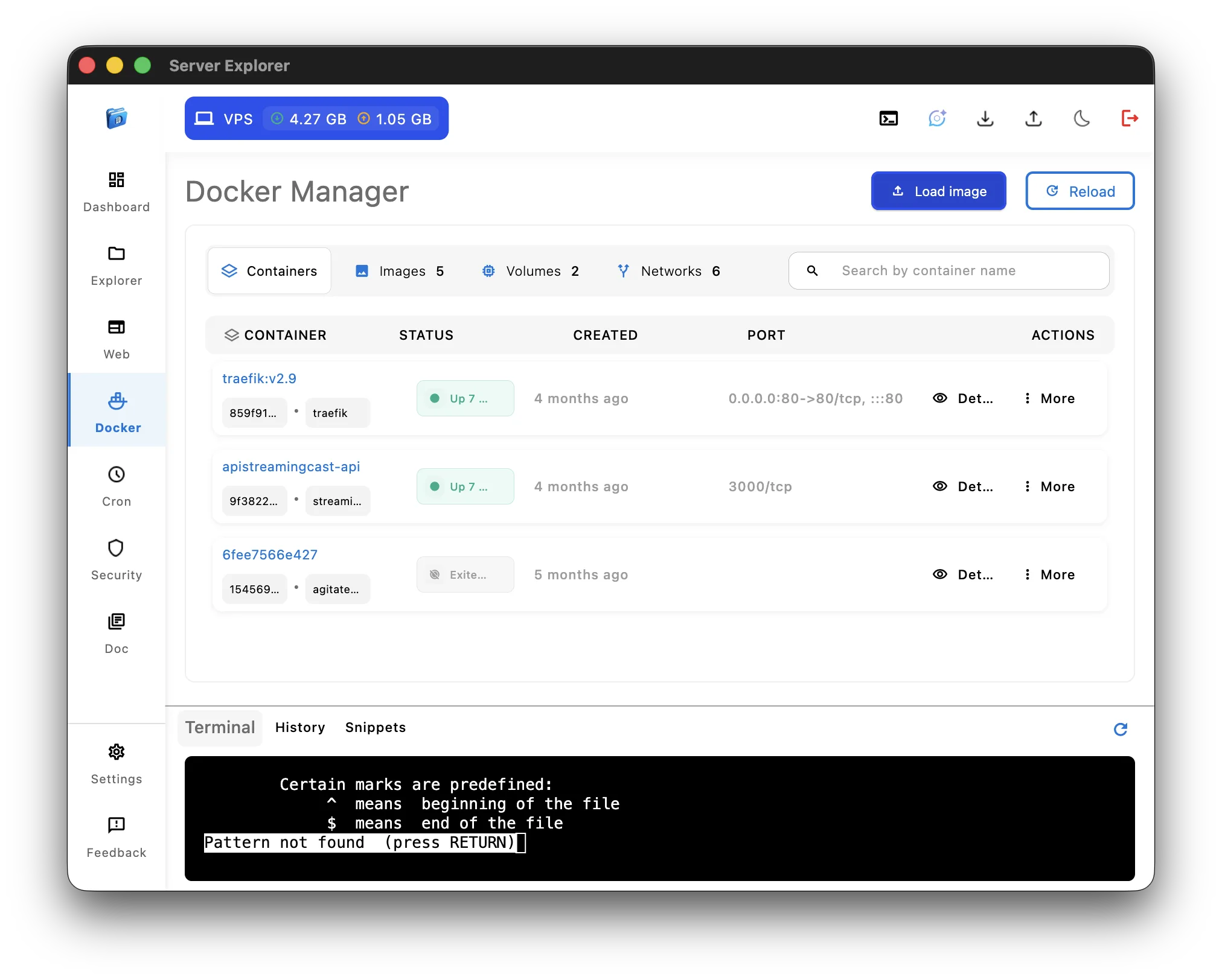
The Docker Manager displays all your containers in a clean table showing:
- Container names and IDs with image information
- Container status (Running, Stopped, Exited) with visual indicators
- Creation dates to track deployment history
- Port mappings for quick reference
- Quick actions (Details, More options[Restart, Stop, Pause, and more…])
No more parsing docker ps output or grepping through container IDs. Everything is organized, searchable, and one click away.
Diving Into Container Details
Click on any container’s “Details” button or container’s name to access comprehensive information:
Inspection Panel:
- View full container configuration
- Check environment variables at a glance
- Integrated CLI in the Container
- Explore container specs as Raw JSON
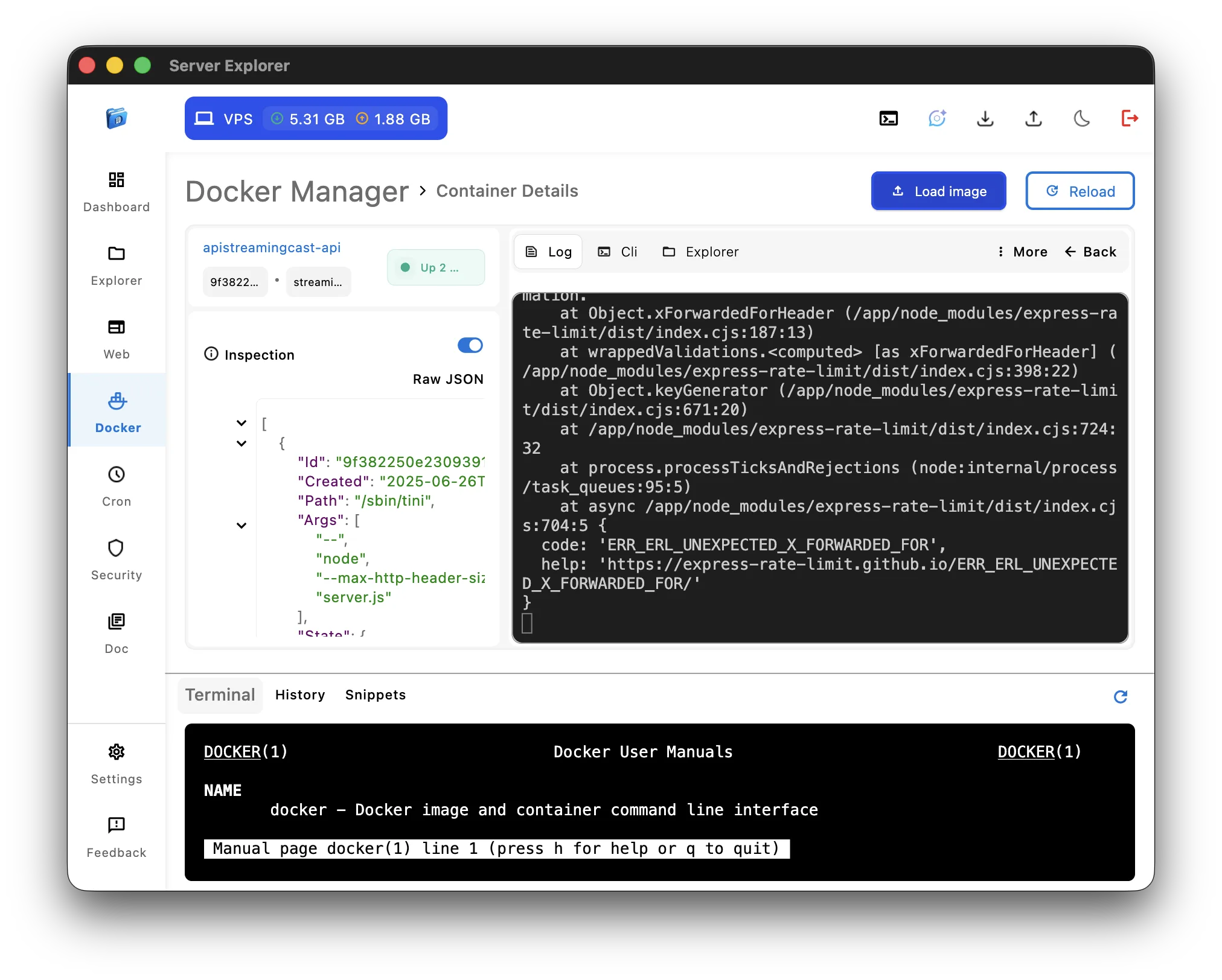
Live Logs: The integrated log viewer displays real-time container output with syntax highlighting. No need to SSH in and run docker logs -f container_name—just switch to the Log tab and watch your application stream logs directly in the interface.
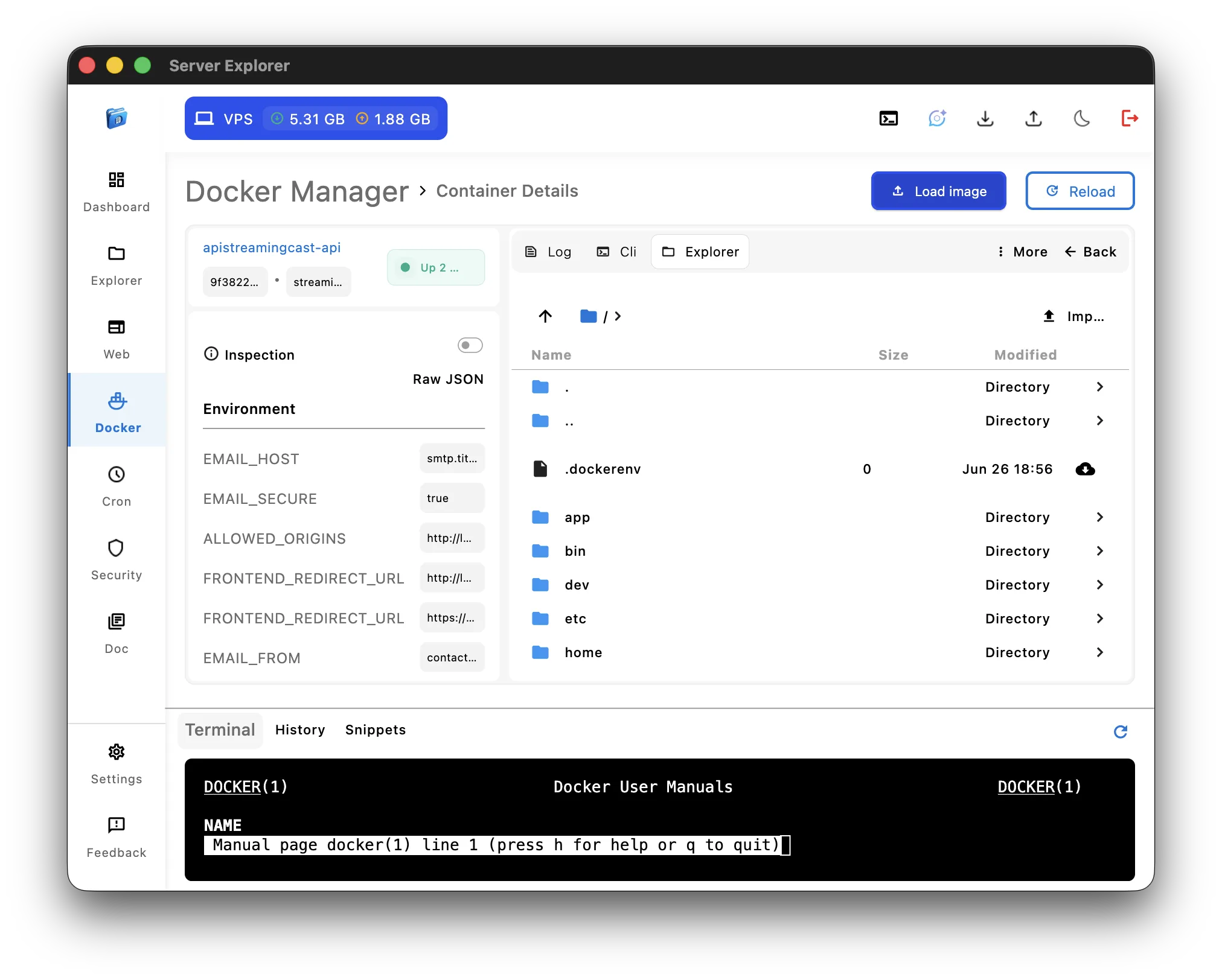
File Explorer: This is where Server Explorer truly shines. Browse your container’s filesystem as if it were a local directory. Need to check a configuration file? Edit it directly. Want to download a generated file? One click.
Container Lifecycle Operations
Managing container states is as simple as clicking a button:
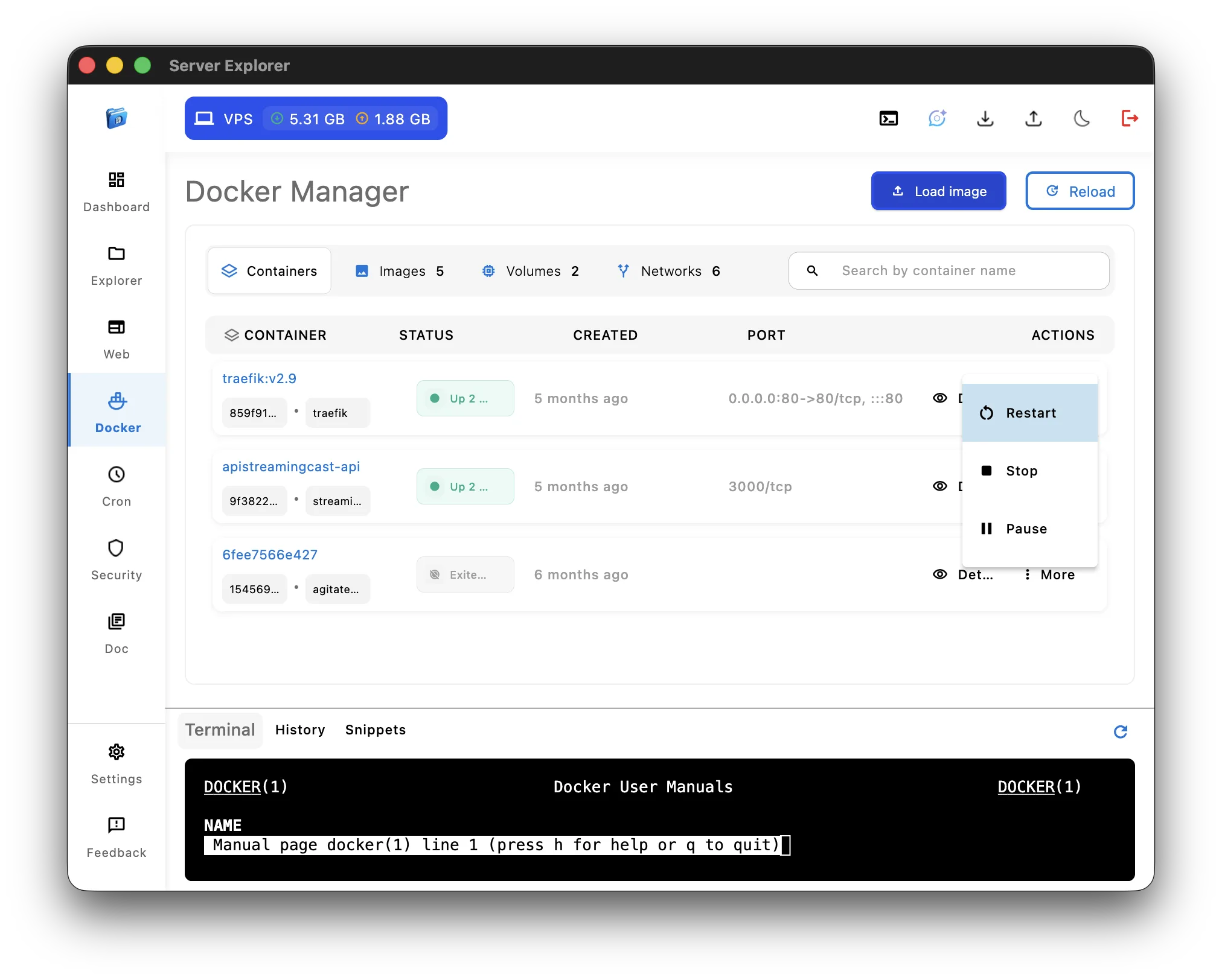
- Restart: Quickly reboot a misbehaving container
- Stop: Gracefully shut down a container
- Pause/Unpause: Temporarily freeze container processes without stopping
These operations happen instantly and provide immediate visual feedback—no waiting to see if your command was successful.
Working with Docker Images
Switch to the Images tab to manage your Docker image library:
- View all locally available images with size information
- Pull new images from registries with progress tracking
- Remove unused images to free up disk space
- Tag and organize images
Instead of typing docker image ls and manually calculating sizes, get a visual breakdown of your image storage instantly.
Managing Volumes and Networks
Volumes Tab: Docker volumes store persistent data for your containers. Server Explorer lets you:
- List all volumes
- Inspect volume details
- Delete unused volumes safely
Networks Tab: Docker networking can be complex. The visual interface simplifies it:
- See all networks (Name, Driver, Scope)
- Create custom networks
- Inspect Network
Load Custom Docker Images
Need to deploy a custom image that isn’t on Docker Hub or a remote registry? The “Load Image” button lets you import Docker image tarballs (.tar files) directly from your local machine.
This is perfect for:
- Testing local builds on remote servers
- Deploying proprietary applications
- Offline deployments where pulling from registries isn’t possible
Simply click “Load Image,” select your tar file, and Server Explorer handles the rest—equivalent to docker load -i image.tar but without the terminal.
Integrated Terminal: The Best of Both Worlds
Here’s the beauty of Server Explorer: when you need raw terminal access, it’s right there at the bottom of the window.
The integrated SSH terminal lets you:
- Run custom Docker commands when needed
- Execute shell scripts
- Perform advanced operations
- Switch seamlessly between GUI and CLI workflows
You’re never locked out of the command line—it’s simply there when you need it, not required for basic operations.
Real-World Workflow Example
Let’s walk through a common scenario: Deploying and troubleshooting a web application.
Without Server Explorer:
ssh user@server
docker ps -a | grep myapp
docker logs -f container_id

# Something's wrong, need to check config
docker exec -it container_id cat /app/config.json

# Need to restart
docker restart container_id

# Check if it's working
docker ps | grep myapp

# View recent logs
docker logs --tail 50 container_id
With Server Explorer:
- Open Docker Manager
- Search “myapp” in the container filter
- Click “Details” → switch to Logs tab
- Spot the error, switch to Explorer tab
- Navigate to
/app/config.jsonand edit directly - Click “Restart” from the More menu
- Logs update automatically—problem solved
Time saved: Significant. Cognitive load: Minimal. Context switching: Zero.
Security Considerations
Server Explorer maintains the same security posture as native SSH + Docker CLI:
- All connections are SSH-encrypted end-to-end
- No data passes through third-party servers
- No credentials stored in the cloud
- You retain full control over authentication methods
The application simply provides a modern interface for commands that would otherwise run in your terminal. Your Docker daemon permissions remain unchanged.
Performance and Efficiency
One concern developers often have: “Won’t a GUI be slower than the CLI?”
The reality is nuanced. For single, specific commands, the terminal might be fractionally faster. But for complex workflows involving multiple operations, visual interfaces excel:
- No need to recall exact command syntax
- Parallel viewing of logs, metrics, and configurations
- Faster pattern recognition through visual cues
- Reduced errors from typos or incorrect flags
Server Explorer uses efficient API calls and caching strategies to ensure responsive performance even with dozens of containers.
When to Use Server Explorer vs. Terminal
Use Server Explorer when:
- Managing multiple containers across different servers
- Exploring container filesystems or debugging configuration issues
- Writing Dockerfiles or docker-compose configurations using integrated Text Editor
- Performing routine maintenance tasks
- Onboarding team members who are less comfortable with CLI
Stick to terminal when:
- Automating tasks with scripts
- Performing bulk operations via bash loops
- Working in restricted environments where GUI isn’t available
The tool doesn’t replace your Docker expertise—it complements it.
Try Server Explorer Today
Ready to streamline your Docker workflow? Server Explorer is available for macOS and Windows.

Server Explorer
Manage your servers with just a few clicks. Replace complex command-line operations with an intuitive interface, while maintaining the performance and security of traditional SSH access.
Key features at a glance:
✅ Visual Docker container management
✅ Live log streaming
✅ Integrated file explorer
✅ Built-in SSH terminal
✅ Volume and network management
✅ Secure, local-first architecture
Conclusion
Managing Docker doesn’t have to mean memorizing dozens of commands or constantly referencing documentation. With the right tools, you can maintain the same level of control while dramatically improving your efficiency and reducing cognitive overhead.
Server Explorer brings modern UI/UX principles to server management without sacrificing the power and flexibility developers need. Whether you’re a seasoned DevOps engineer or a developer just getting started with containers, having a visual interface alongside your terminal skills makes you more productive.
The command line isn’t going anywhere—but that doesn’t mean it has to be your only option.
What’s your biggest Docker management pain point? Share your experience in the comments, or reach out if you’d like to see specific features covered in future guides.
Server Explorer is available now for macOS and Windows. Start your free trial at serverexplorer.ledocdev.com